Adobe Photoshop is $22.99/mo USD on the Photography plan, $34.49/mo CAD in Canada, which is a real subscription for occasional photo work. The free alternatives are better than they were five years ago — especially in the last 18 months, with GIMP 3.0 finally shipping and Photopea adding genuinely useful AI tools.
I spent two months in late 2025 / early 2026 testing eight free photo editors on Windows 11 24H2. Below is what each is best for, what falls short, and the one I’d recommend by use case.
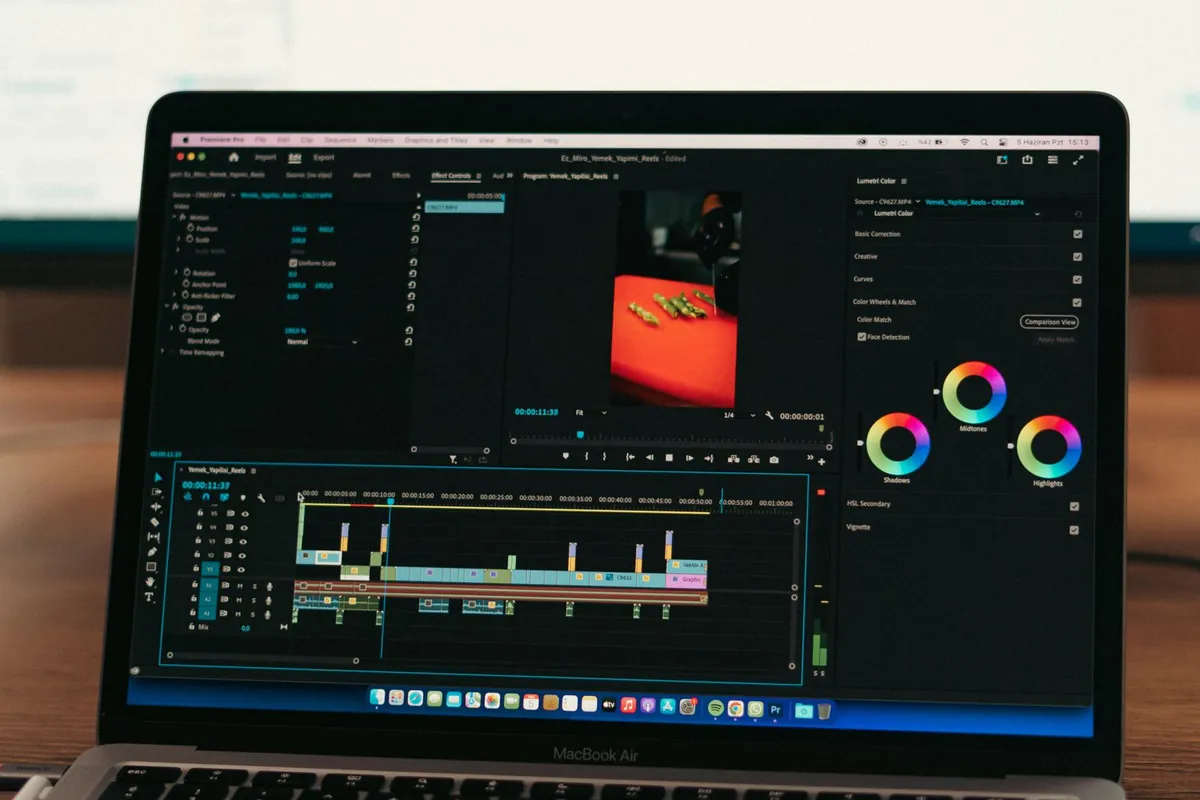
How did I pick these 8 photo editors?
Every editor on this list meets four criteria:
- Free with no time-limited trial
- Runs natively on Windows 11 (not just browser-based, except where noted)
- Active development as of January 2026
- Capable of at least basic layer-based editing
I tested each one on the same set of 20 photos — a mix of phone photos, mirrorless RAW files (Sony A7C, Fujifilm X-T5), and a few scanned old prints. Same Windows 11 24H2 laptop, ThinkPad T14, 32GB RAM.
Quick comparison: which free photo editor wins for what?
| Software | Best For | Learning Curve | RAW Support | AI Features | Verdict |
|---|---|---|---|---|---|
| GIMP 3.0 | All-around editing | Medium-High | Via plugin | Limited | ✅ Overall winner |
| Darktable | Photo retouching, RAW | High | Excellent | No | ✅ Best for photographers |
| Photopea | Quick edits, PSD files | Low | Yes | Yes | ✅ Best browser option |
| Krita | Digital painting | Medium | Limited | No | ⚠️ Painting-focused |
| Paint.NET | Beginners | Low | No | No | ⚠️ Too basic |
| RawTherapee | RAW processing | Very High | Excellent | No | ⚠️ Niche |
| PhotoScape X | Batch + collages | Low | Limited | Basic | ⚠️ Solid extras |
| Pixlr X (Free) | Social media graphics | Low | No | Yes (limited) | ❌ Ad-heavy |
Why is GIMP 3.0 finally my top pick?
I avoided recommending GIMP for years. The 2.x versions had no native non-destructive editing, the UI was a mess of floating windows, and the workflow felt like fighting the software. The 3.0 release in 2024 changed all that.
What’s actually good now:
- Non-destructive filters — finally. You can apply a filter, change parameters later, undo without losing layers.
- Single-window interface by default — the floating windows mess is gone.
- Better PSD compatibility — opens Photoshop files including most layer effects.
- Layer effects — drop shadows, glows, strokes, finally built in instead of multi-step manual processes.
- Active plugin ecosystem — G’MIC alone is worth installing for hundreds of professional-grade filters.
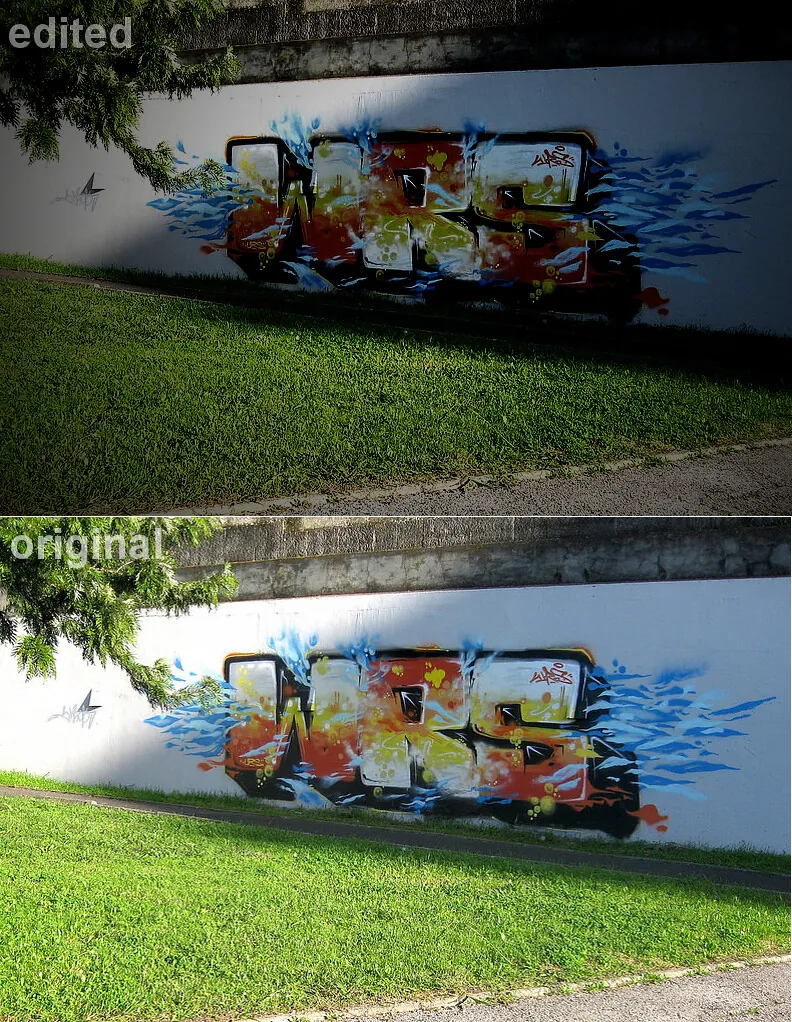
What’s still rough: keyboard shortcuts differ from Photoshop in places that frustrate veterans, and the brush engine isn’t quite as smooth as Krita. But for 90% of photo editing tasks — retouching, color correction, compositing, basic graphic design — GIMP 3.0 is now a real Photoshop alternative.
Download from gimp.org/downloads. The Windows installer is about 250 MB.
When should I pick Darktable instead?
If your main work is photo retouching from RAW files — adjusting exposure, color, lens corrections, the kind of thing Lightroom does — Darktable is genuinely better than GIMP. It’s a Lightroom-style “develop and catalog” tool, not a layer-based editor.
Strengths: excellent RAW engine, color science that holds up against Lightroom, full non-destructive workflow, photo cataloging built in, lens correction database for hundreds of lenses, modern UI as of v4.6 (late 2024).
Weaknesses: steep learning curve, not the right tool for compositing or graphic design, no good Photoshop-style brush tools. If you came from Lightroom you’ll feel at home in 30 minutes. If you came from Photoshop you’ll be confused for a week.
Get it from darktable.org/install.
What about Photopea?
Photopea is the one that always surprises people. It runs entirely in your browser — no install, no account required — and the interface is a near-perfect Photoshop clone. Layers, masks, smart objects, blend modes, the works. It opens PSD files almost identically to actual Photoshop.
In 2026 it added some genuinely useful AI features: object removal, background generation, super-resolution. Quality isn’t quite at Adobe’s Generative Fill level but it’s free and the gap is small.
Downsides: requires internet, has ads on the free tier (small but present), and large files (over ~500 MB) slow the browser noticeably. Premium is $5/mo USD if you want ad-free.
I use Photopea for quick “I just need to crop and resize this one image” tasks where launching GIMP feels like overkill.
What’s good about Krita, Paint.NET, and the rest?
Krita is purpose-built for digital painting. If you’re an illustrator with a drawing tablet, Krita beats GIMP for brushwork. For photo editing specifically, it’s overbuilt — too many painting features, not enough photo features.
Paint.NET is fine if you want something simpler than GIMP, basically a souped-up MS Paint with layers. I find it too limited for any serious work in 2026, but if you literally only crop, resize, and tweak occasional photos, it’s fast and lightweight.
RawTherapee is a hardcore RAW processor — best-in-class RAW engine, but the UI is impenetrable for casual users. I’d only recommend it to photographers who already know their way around demosaic algorithms.
PhotoScape X has genuinely useful batch processing and collage tools that GIMP lacks. I keep it installed for one specific use case: batch-renaming, resizing, and watermarking 200 photos at once.
Pixlr X used to be a top free pick but the ad-heavy 2025 redesign and aggressive upsell prompts have made it frustrating. Skip it.
What’s the right pick if I’m coming from Photoshop?
Try Photopea first. It looks and works almost exactly like Photoshop, the keyboard shortcuts match, and you can open your existing PSDs without conversion. If you need offline editing or hit the browser performance ceiling, install GIMP 3.0 as the desktop fallback.
What about for casual users editing phone photos?
Honestly, the Photos app built into Windows 11 24H2 has gotten pretty good — basic crop, color, AI background blur, magic eraser. For nothing-fancy phone-photo edits, check it first before installing anything.
When you hit its limits (anything involving layers, more aggressive retouching, working from RAW), step up to GIMP 3.0 or Photopea.
How do I install GIMP 3 on Windows 11 safely?
- Go to gimp.org/downloads — always the official site, never random “GIMP downloader” sites which bundle adware.
- Click “Download GIMP 3.0.X directly”. Save the .exe (about 250 MB).
- Right-click the installer → Run as administrator.
- Pick a custom install location only if your C: drive is short on space — otherwise accept defaults.
- First launch takes 30–60 seconds while it builds caches. Be patient.
If you want G’MIC (highly recommended), grab the GIMP plugin version from gmic.eu after GIMP is installed.
Frequently Asked Questions
Is GIMP really as good as Photoshop?
For most photo editing tasks in 2026, yes. The 3.0 rewrite closed the biggest gaps — non-destructive editing and a sane UI. Photoshop still wins on AI features (Generative Fill, Neural Filters), pen tool precision, and ecosystem integration with Lightroom. For 90% of edits, GIMP gets you there without the subscription.
Can free photo editors open RAW files from my camera?
Darktable and RawTherapee handle RAW natively from almost every camera in production. GIMP needs a plugin (RawTherapee can act as the GIMP RAW engine). Photopea opens common RAW formats with reduced editing options. The Windows 11 Photos app handles RAW from major cameras with the free RAW Image Extension from the Microsoft Store.
Are any of these editors AI-enabled like Adobe?
Photopea has the most AI features of the free options — object removal, generative fill, and upscaling. GIMP 3.0 has some AI tools via plugins but nothing as integrated as Adobe. If AI features are critical, Photopea is the closest free alternative right now.
Do any of these work on Mac?
GIMP, Krita, Darktable, RawTherapee, and Photopea (browser) all run on macOS Sequoia. Paint.NET is Windows-only. Pixlr is web-based and works anywhere. For Mac-specific workflow, see my forthcoming Mac photo editor guide.
What about Affinity Photo — is it really free?
No — Affinity Photo is paid, $69.99 USD one-time (no subscription). Worth mentioning because it’s the closest paid Photoshop alternative without monthly fees. But it’s outside the “free” scope of this article.
For other software roundups, see the best free screen recorders for Windows and the best free note-taking apps for 2026. If your laptop is sluggish under any of these editors, my Windows laptop speed-up guide is a good read.
— Mark Thompson, Toronto
