The “my Wi-Fi is slow” call is one I take from family at least once a month. In about 70% of those cases, the actual ISP connection is fine — the Wi-Fi between the router and the device is the bottleneck. Below are the 12 fixes I work through, in order of how often they’re the real culprit and how easy they are to try.
Start with the diagnosis step. Don’t skip to fix #5 before you know what’s actually slow.
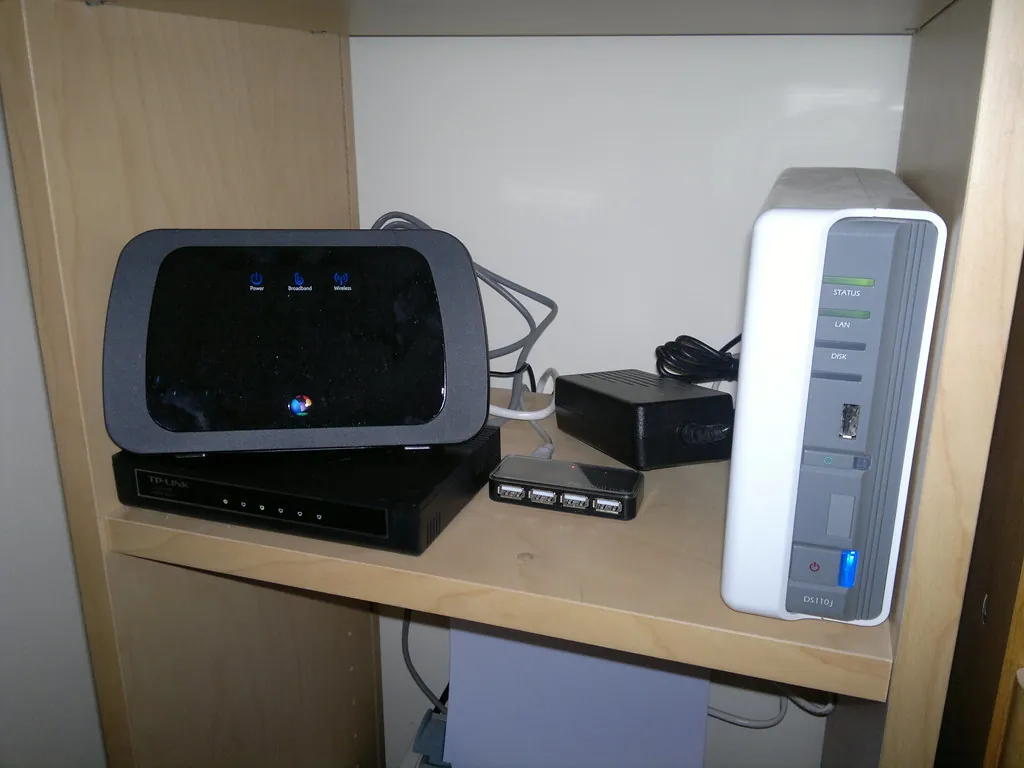
First, figure out where the slowness actually is
Connect a laptop to your router with an Ethernet cable. Run a speedtest at speedtest.net. Note the number.
Now disconnect the cable, connect via Wi-Fi from the same spot, and run it again.
- Both are slow — your ISP or router has a problem. Call your ISP first, restart the modem, check for service outages.
- Ethernet is fast, Wi-Fi is slow — your Wi-Fi setup is the problem. The 12 fixes below apply.
- Both are fast, but only certain devices are slow — the slow device itself (old laptop Wi-Fi card, phone in need of restart) is the issue.
Fix 1: Restart your router (yes, really)
Unplug the power, count to 30, plug it back in. Routers run small embedded operating systems, and they accumulate memory leaks and weird state. I’ve seen routers go from 8 Mbps Wi-Fi back to their full 400 Mbps after a single reboot.
Build a habit: restart your router once a month. Some routers (like recent eero and TP-Link models) have a scheduled-restart option in the admin app — turn it on and forget about it.
Fix 2: Move your router to a central, elevated spot
Wi-Fi signal goes through walls but loses strength fast. Two thick walls between you and the router and you’re losing half your speed. A microwave running between you and the router will obliterate 2.4 GHz signal for the duration.
Ideal placement: a central room of your home, on a shelf at chest height (4–5 ft / 1.2–1.5 m off the ground), with at least a few inches of breathing room around it. Bad placement: floor of a closet, behind the TV, basement corner, on top of the fridge.
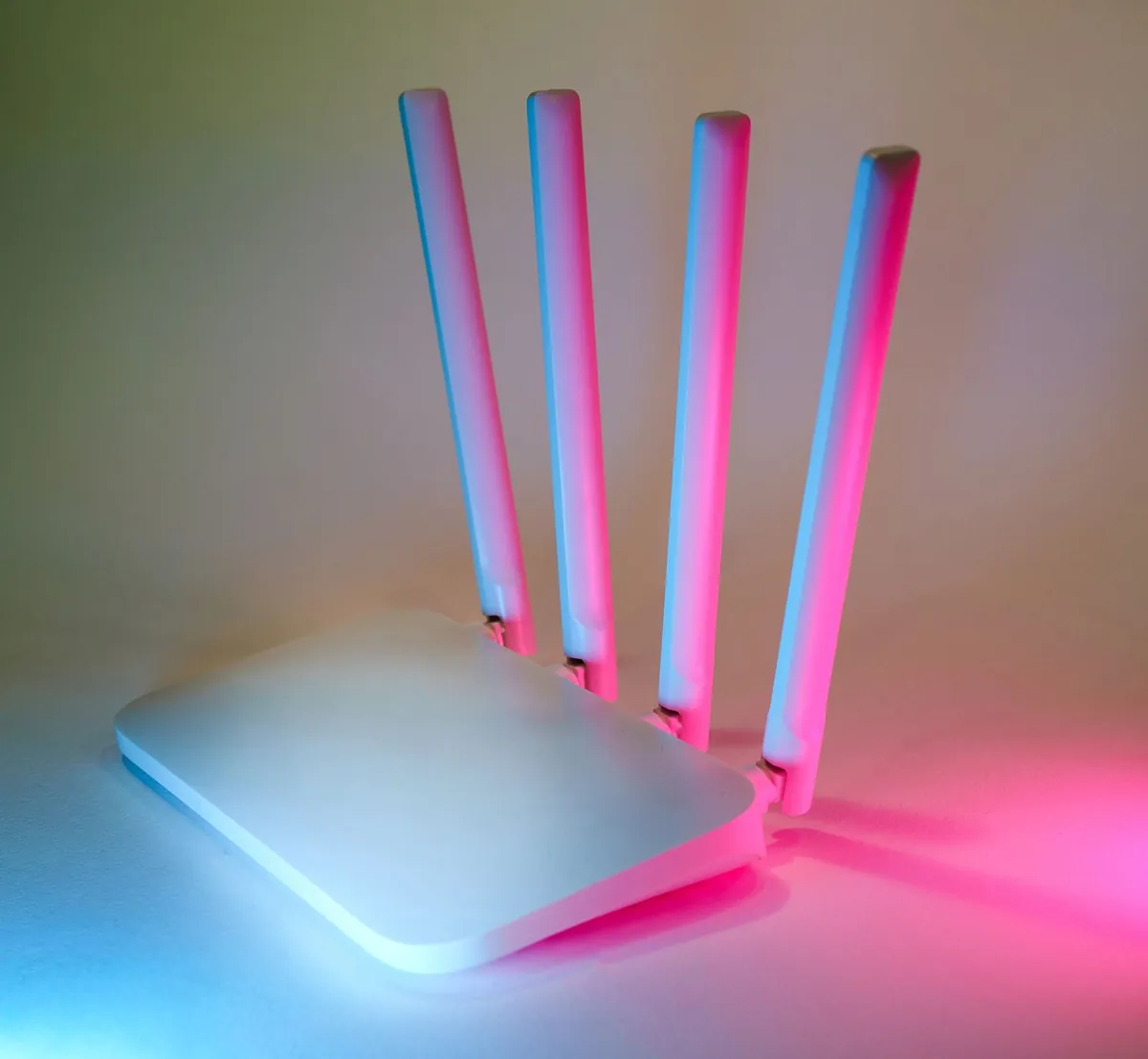
Fix 3: Switch your devices to the 5 GHz band
Most home routers in 2026 broadcast two (or three) bands: 2.4 GHz, 5 GHz, and increasingly 6 GHz on Wi-Fi 6E routers. 2.4 GHz has longer range but is much slower and much more congested (microwaves, baby monitors, every neighbor’s IoT junk). 5 GHz is faster and far less crowded.
On your phone or laptop, forget the 2.4 GHz network and connect to the 5 GHz one. The SSID often has “5G” or “_5GHz” suffix.
If your router uses a single SSID and automatically band-steers, you can’t choose — but you can check the admin UI to see which band each device is actually on.
Fix 4: Change your Wi-Fi channel
Wi-Fi channels are like radio stations. If your neighbors are all on channel 6 of 2.4 GHz, your network is competing for airtime. Switching to a less-crowded channel can give a real speed boost.
- Install a Wi-Fi analyzer — WiFi Analyzer on Windows or the iPhone “AirPort Utility” with Wi-Fi scanner enabled.
- Scan your area. Identify which channels are crowded and which are empty.
- Log into your router (usually
192.168.0.1or192.168.1.1), go to wireless settings, change channel manually. - For 2.4 GHz, only channels 1, 6, and 11 don’t overlap — pick whichever has the least competition.
- For 5 GHz, there are many non-overlapping channels — just pick one that’s empty.
Fix 5: Update your router’s firmware
Old firmware has bugs and known performance issues. Most routers don’t auto-update unless you turn the feature on. Log into the router admin UI and check for updates — there’s usually a button.
If your router is so old it doesn’t have firmware updates anymore (any model from 2019 or earlier), that’s your sign to upgrade.
Fix 6: Disable old Wi-Fi standards (802.11b/g/n)
If even one ancient device on your network (a 2015 Kindle, a 2017 smart fridge) connects via 802.11n or older, your whole network throttles to accommodate. Go into router settings and disable the older standards if all your active devices support 802.11ac (Wi-Fi 5) or newer.
This is an “advanced” tweak — if you don’t recognize a device, don’t disable the older standards. But if you’ve audited your network and everything is recent, it can give a real speed boost.
Fix 7: Upgrade to Wi-Fi 6 or Wi-Fi 6E if your router is from 2019 or earlier
If you’re still on a Wi-Fi 5 (802.11ac) router from 2019 or earlier, this is the single biggest fix on the list. A solid Wi-Fi 6 router runs $80–$150 USD (C$110–C$210) in 2026:
- TP-Link Archer AX55 — $99 USD, solid mid-range pick
- ASUS RT-AX86U — $230 USD, better for gaming households
- Eero 6+ — $139 USD for a single unit, $239 for a 2-pack, mesh-ready
Wi-Fi 6 gives meaningful real-world speed improvements even on existing Wi-Fi 5 client devices, because of better airtime management. With Wi-Fi 6 client devices (most phones from 2020+, most laptops from 2021+), the improvement is dramatic.
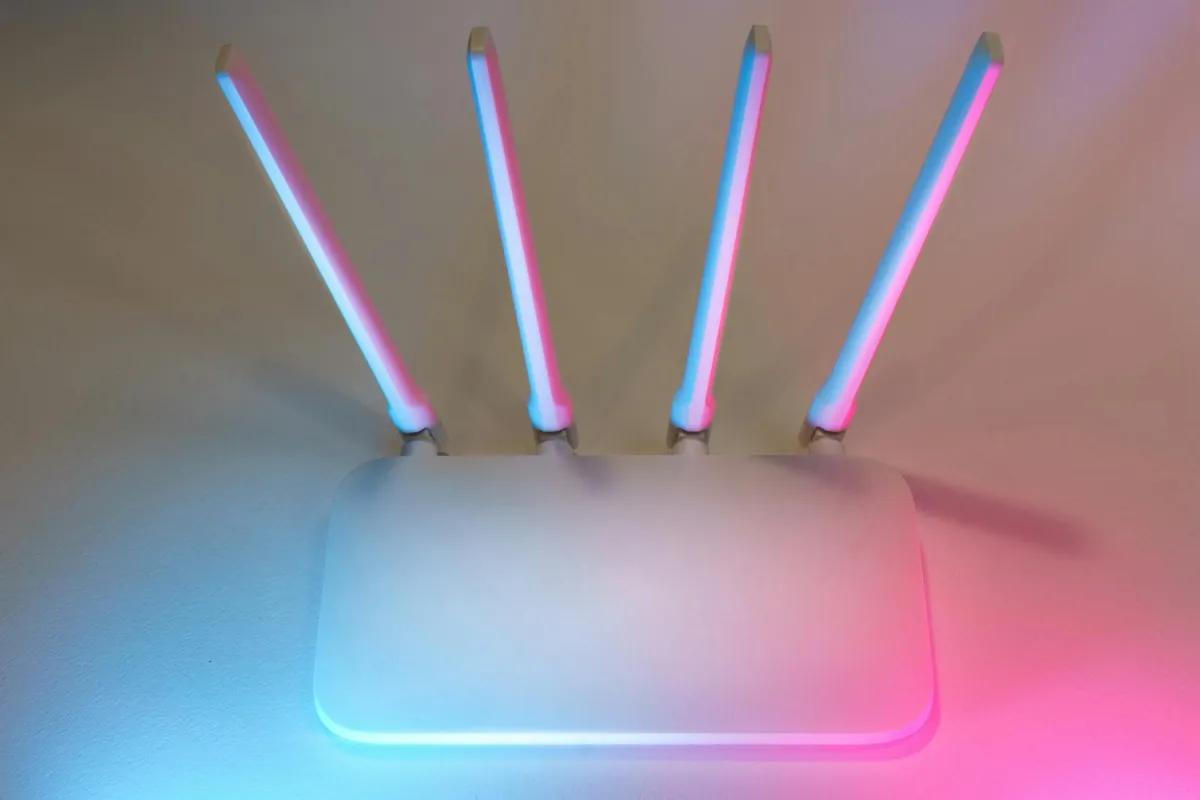
Fix 8: Use a mesh system if you have a big or multi-floor home
If your home is over ~1,800 sq ft (170 m²) or has thick walls or multiple floors, a single router will leave dead zones. Mesh systems use multiple units that talk to each other and hand off devices seamlessly.
Recommended: Eero 6+, TP-Link Deco X55, or Google Nest Wifi Pro. Plan on $200–$350 USD for a 2- or 3-pack covering most homes.
Skip mesh if your home is small — a single Wi-Fi 6 router is cheaper and faster than a mesh setup in a tight space.
Fix 9: Check for Wi-Fi-hogging devices
One device streaming 4K Netflix can saturate a moderate connection. Cloud backup tools, OS updates downloading in the background, or someone gaming with a download running in the background can all crush available bandwidth.
Most routers in 2026 have an app with a “what’s using bandwidth right now” view. If you find a hog, pause it (or set QoS prioritization for your important devices).
Fix 10: Check your DNS
Slow DNS makes websites feel slow even when your raw bandwidth is fine. Switch to a faster DNS:
- Cloudflare: 1.1.1.1 and 1.0.0.1 (fastest in most North American tests)
- Google: 8.8.8.8 and 8.8.4.4
- Quad9: 9.9.9.9 (adds malware blocking)
Change DNS at the router level so it applies to every device. Router admin UI → DNS settings → enter the IPs.
Fix 11: Check for damaged Ethernet cables on your modem→router link
If your router and modem are connected by an old Cat5 cable, you might be capped at 100 Mbps even on a 1 Gbps internet plan. Replace with Cat6 or Cat6a (about $8–$12 USD for a 10-foot cable on Amazon). I had a client whose “slow Wi-Fi” was actually a 100 Mbps cable between modem and router. C$30 of Cat6 fixed it.
Fix 12: If nothing else works, ask your ISP about your modem
ISP-provided modems are often old and underspec’d. If your ISP gives you a “free” modem-router combo, that combo is often the bottleneck. Ask if a newer model is available (it usually is, they just don’t ship it unless you ask).
Better still: buy your own modem (one-time cost $80–$150 USD) and bypass the ISP rental fee permanently. Verify it’s on your ISP’s approved-modem list first.
How do I actually test if a fix worked?
- Run speedtest.net from the same physical spot, same device, same time of day, three times.
- Note the median number.
- Apply one fix at a time.
- Re-run the test. If speeds didn’t change, undo and try the next fix.
Doing fixes one at a time matters — if you change three things at once, you don’t know which one helped.
Frequently Asked Questions
Will a Wi-Fi extender speed up my connection?
Usually not — Wi-Fi extenders typically cut throughput in half because they receive and re-transmit on the same band. A mesh system is the modern replacement for an extender and works much better. Skip the $30 extender and put that money toward a proper mesh node.
How much speed do I actually need at home?
For a typical 2-person household with 4K streaming and occasional video calls, 200 Mbps is plenty. For a 4-person household with gaming and remote work, 500 Mbps. Going above 1 Gbps only helps if multiple devices saturate the connection at the same time. Most “Gigabit” plans are paying for headroom rather than need.
Why is my Wi-Fi slower at night?
Two reasons: neighbors are home and using their networks (more channel congestion), and your ISP’s peering links can hit congestion in the 7–11 PM window. The first you can fix with channel changes; the second is your ISP’s job.
Should I get Wi-Fi 7?
Probably not yet in 2026. Wi-Fi 7 routers are $400+ USD and you need Wi-Fi 7 client devices to see benefit (still rare). Wi-Fi 6 / 6E covers the vast majority of homes for the next 3–5 years at half the price.
Is Ethernet always faster than Wi-Fi?
For desktops, gaming consoles, and TVs that don’t move, yes — Ethernet is always more reliable and usually faster. If you can run a cable to one device that needs it most, do it. Wi-Fi 6E approaches gigabit Ethernet speeds in ideal conditions but loses to wired in everyday use.
For securing the network once you’ve got it fast, my free VPN comparison is the next read. For tracking what’s eating bandwidth, see speeding up a slow Windows laptop. And if you’re moving big files around the LAN, moving files between Mac and Windows covers the fast methods.
— Mark Thompson, Toronto
