YouTube does not care how much you spent on your editor – it cares about pacing, audio quality, and thumbnails. After editing a few hundred short tutorials for clients and my own how-to channel, I keep coming back to a handful of free tools depending on the job.
Which free video editor should a YouTube beginner install first?
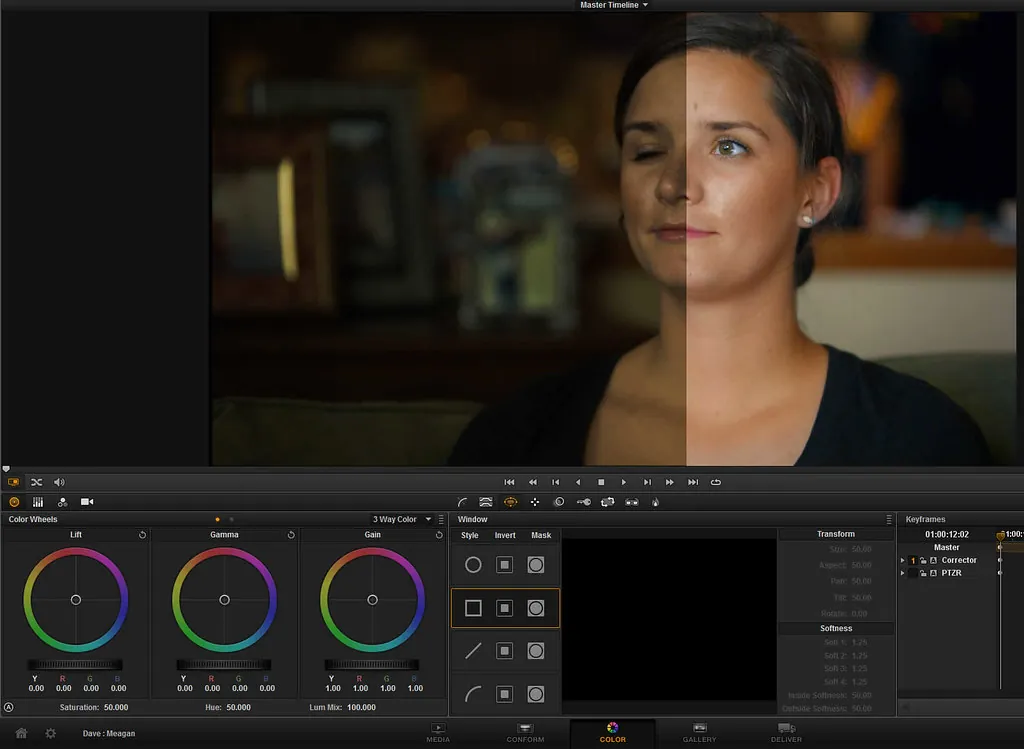
If you can handle 30 minutes of YouTube tutorials to learn the basics, DaVinci Resolve 19 from Blackmagic Design. It is free, does not expire, no watermark, and is genuinely Hollywood-grade. The free version omits collaborative features and certain codecs, but everything a YouTuber needs is there.
If 30 minutes of tutorials sounds awful, CapCut Desktop is the friendliest option. Built by ByteDance, it is deliberately easy. AI captions, auto background music sync, decent effects library, exports straight to YouTube format. Privacy caveat: it phones home a lot.
Is Clipchamp in Windows 11 24H2 actually usable?
For short clips, yes. Microsoft bought Clipchamp and now bundles it. It exports up to 1080p free, has stock footage, and the UI is dead simple. The downsides: rendering happens partly in the cloud, 4K export is paid, and the music library is thin.

What about open-source – Shotcut, OpenShot, Kdenlive?
Of these three, Kdenlive 24.08 is now the most polished. The KDE team has done huge work on stability over two years. Multi-track timeline, color grading, proxy clips for 4K editing on weaker hardware. Runs on Linux, Mac, and Windows.
Shotcut is the next best. Slightly clunkier UI, but rock-solid for cuts and basic effects.
OpenShot has been my still-crashes-regularly pick for years. I avoid it.
HitFilm Express – still relevant in 2026?
Sadly, no. FXhome killed the free HitFilm Express tier in 2023 and replaced it with paid-only HitFilm. Skip.
iMovie – is it worth it on Mac?
For absolute beginners on a Mac, sure. It is free, stable, and exports clean MP4. The Achilles heel is template visibility – audiences spot iMovie titles in 1.2 seconds. If you are on a Mac, learn DaVinci Resolve instead.
What is the head-to-head feature comparison?
| Editor | 4K Free | Watermark | OS | AI Captions |
|---|---|---|---|---|
| DaVinci Resolve 19 | Yes | No | Win/Mac/Linux | Studio paid |
| CapCut Desktop | Yes | No | Win/Mac | Yes |
| Clipchamp | No (paid) | No | Win 11 | Yes |
| Kdenlive 24.08 | Yes | No | Win/Mac/Linux | Plugin |
| Shotcut | Yes | No | Win/Mac/Linux | No |
| iMovie | Yes | No | Mac/iOS | Limited |
What hardware do I need to edit smoothly?
For 1080p YouTube editing, anything from the last five years works. 16GB RAM minimum, an SSD, and a discrete GPU help DaVinci a lot. For 4K, push to 32GB RAM and a modern GPU (RTX 3060 / RX 6700 or better).
If you are building a machine, my custom PC build under $1,000 covers a balanced 1080p editing setup. For storing all that footage, my backup software guide is mandatory. For thumbnails, my free drawing software roundup covers Photopea and Krita.
Frequently Asked Questions
Does DaVinci Resolve free have a watermark?
No. The free version exports clean. The paid Studio version unlocks GPU-accelerated effects, 4K HDR, and noise reduction.
Is CapCut safe to use?
It works fine, but it is owned by ByteDance and uploads telemetry. Do not use it for confidential client work.
Can I edit YouTube Shorts in these editors?
Yes – all support 9:16 vertical timeline. CapCut and Clipchamp have built-in Shorts templates.
What about Lightworks free?
Lightworks free now caps exports at 720p, which is too low for modern YouTube. Skip.
Should I learn Premiere Pro instead?
If you have $22.99/month for an Adobe sub, sure. Otherwise DaVinci Resolve is the only free tool that translates directly to industry-standard skills.
