I’ve fixed this loop on more Windows 11 machines than I can count — usually after a Patch Tuesday update goes sideways, sometimes after a graphics driver installer crashes mid-install. The good news: 80% of the time, one of the first three fixes below resolves it. The bad news: the WinRE (Windows Recovery Environment) menu can be intimidating if you’ve never used it.
This guide walks through every method in the order I actually use them at my Toronto office. Start at #1 and work down. Don’t skip ahead unless you have a specific reason.

What does “Your PC did not start correctly” actually mean?
It means Windows tried to boot, encountered an error in the kernel or critical drivers, and bailed out twice in a row. The recovery environment kicked in to give you a way to repair the system. Common root causes:
- A Windows Update that didn’t apply cleanly (especially after KB-numbered cumulative updates)
- A corrupted BCD (Boot Configuration Data) file
- A bad graphics or storage driver
- A failing SSD or HDD (less common but possible)
- BitLocker getting confused after a TPM or BIOS change
Before you start: if your data isn’t backed up, this is the moment to think about that. Most of these methods are safe, but anything that touches the boot sector has a non-zero chance of making things worse. If you can, boot a Linux USB and copy your Documents/Pictures folders off the drive first.
Method 1: Run Startup Repair
This is the built-in automatic fix. It works maybe 30% of the time on its own — not great odds, but it’s free, fast, and risk-free.
- From the “Your PC did not start correctly” screen, click Advanced options.
- Click Troubleshoot → Advanced options → Startup Repair.
- Pick your account if prompted, enter your password.
- Wait 10–30 minutes. Don’t interrupt it.
If Startup Repair says “Startup Repair couldn’t repair your PC”, that’s not a failure — that’s just informational. Move to Method 2.

Method 2: Boot into Safe Mode and uninstall the latest update
If this started after a Windows Update (Patch Tuesday is the most common trigger), this fix has a high success rate.
- From the recovery menu: Troubleshoot → Advanced options → Startup Settings → Restart.
- When the system reboots, press 5 (or F5) for Safe Mode with Networking.
- Once you’re at the desktop in Safe Mode, open Settings → Windows Update → Update history → Uninstall updates.
- Find the most recent cumulative update (it’ll be dated within the last few days). Click Uninstall.
- Restart normally and see if the boot loop is gone.
If Safe Mode itself won’t boot, that’s a bigger problem — keep moving through this list.
Method 3: Run SFC and DISM from Command Prompt
System File Checker (SFC) and Deployment Image Servicing and Management (DISM) check for and repair corrupted Windows system files. These are the workhorses of Windows recovery and resolve a huge percentage of boot issues.
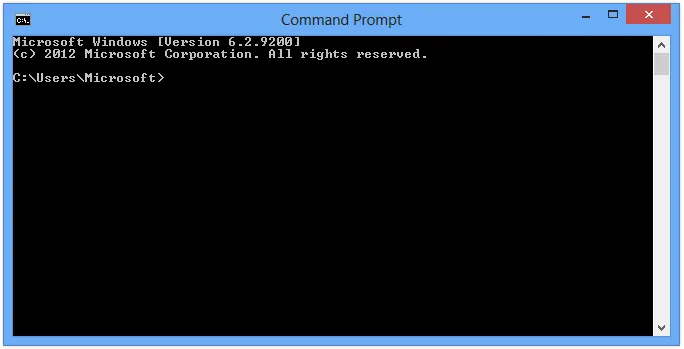
- Recovery menu: Troubleshoot → Advanced options → Command Prompt.
- Pick your account and enter your password.
- At the prompt, run these one at a time. Each can take 10–30 minutes. Don’t skip the order.
sfc /scannow /offbootdir=C:\ /offwindir=C:\Windows dism /image:C:\ /cleanup-image /restorehealth - If your Windows partition isn’t C: (sometimes it shows as D: from the recovery environment), use the right letter. To check, run
diskpartthenlist volume, find the one labeled Windows. - Restart when both complete.
Method 4: Rebuild the BCD (Boot Configuration Data)
If the boot loop happened after partition changes, a failed dual-boot setup, or BitLocker confusion, the BCD is often the culprit.
From Command Prompt in the recovery environment, run these in order:
bootrec /fixmbr
bootrec /fixboot
bootrec /scanos
bootrec /rebuildbcd
If bootrec /fixboot returns “Access is denied” (very common on UEFI systems), run this instead:
bcdboot C:\Windows /s C: /f UEFIWhere C: is your Windows partition. Restart and test.
Method 5: Disable automatic restart on system failure
This doesn’t fix anything but it shows you the actual error code, which helps you find a targeted fix.
- From recovery: Troubleshoot → Advanced options → Startup Settings → Restart.
- Press 9 (Disable automatic restart after failure).
- Watch for the blue screen error code (e.g., INACCESSIBLE_BOOT_DEVICE, CRITICAL_PROCESS_DIED).
- Google the exact error code — that gets you a much more targeted fix path.
Method 6: Use System Restore
If you had System Restore enabled before the crash (it’s off by default in Windows 11 24H2, frustratingly), you can roll back to a working state.
- Recovery menu: Troubleshoot → Advanced options → System Restore.
- Pick a restore point dated before the problem started.
- Let it complete (15–30 minutes typically).
If there are no restore points listed, System Restore was off. Skip to the next method.
Method 7: Disable driver signature enforcement
If a recent driver install caused this — common with graphics card driver updates or chipset drivers — booting once with driver signature enforcement disabled lets you log in and uninstall the bad driver.
- From recovery: Troubleshoot → Advanced options → Startup Settings → Restart.
- Press 7 (Disable driver signature enforcement).
- If Windows boots, open Device Manager → find the recently updated device → right-click → Properties → Driver tab → Roll Back Driver.
Method 8: Reset BIOS/UEFI settings
If you (or a Windows update) recently changed BIOS settings — Secure Boot, TPM, RAID mode — the boot configuration may have gotten out of sync.
Restart, mash F2 / F12 / Del (varies by manufacturer) to enter BIOS, find “Load Default Settings” or “Reset to Defaults”, save and exit. If the system uses BitLocker, you’ll need your recovery key the first time it boots after this change — get it from account.microsoft.com/devices/recoverykey.
Method 9: Check the drive’s SMART status
If you keep landing back at this screen no matter what you do, the underlying SSD might be failing. From Command Prompt in recovery:
wmic diskdrive get model,status,sizeIf status isn’t “OK”, the drive is in trouble. Back up everything that’s accessible and replace the drive. I’ve seen this pattern several times — a year-old NVMe SSD throwing boot errors that look like software problems but were actually controller failures.
Method 10: Reset your PC (last resort)
If nothing else worked, the nuclear option: Troubleshoot → Reset this PC. Pick “Keep my files” first. This reinstalls Windows but preserves your Documents/Pictures/Desktop. Apps are removed.
If “Keep my files” reset also fails (which happens occasionally), the only remaining option is a clean install from a Windows 11 USB. Microsoft’s Media Creation Tool makes the USB. Plan on 1–2 hours and back up your data first via Linux Live USB if you haven’t already.

How do I prevent this from happening again?
- Turn System Restore on — Settings → System → About → System protection → Configure → Turn on. Pick 5–10% disk space.
- Delay Windows updates 7 days — Settings → Windows Update → Advanced options → Pause updates for 1 week after a Patch Tuesday so you can wait out the worst bugs.
- Keep an external backup — File History or a third-party backup tool, weekly minimum.
- Have a Windows 11 USB ready — make one when you set up your PC, store it in a drawer.
Frequently Asked Questions
Will resetting my PC delete my files?
Only if you pick “Remove everything”. The “Keep my files” option preserves Documents, Pictures, Desktop, Downloads, and Music folders. It does remove all installed apps — you’ll have to reinstall them. Either way, back up critical data first via Linux Live USB if you can.
Why does this keep happening after Windows updates?
Cumulative updates occasionally ship with bugs that interact badly with specific hardware (a graphics driver, a chipset, a storage controller). Patch Tuesday updates are the most common culprit. If you’ve been hit twice in a row by the same root cause, set Windows Update to defer feature updates and only install quality updates 7+ days after release.
How long does Startup Repair actually take?
Anywhere from 10 minutes to over an hour. Don’t interrupt it even if the screen looks frozen — the disk activity light tells you whether it’s still doing something. If it’s been over 2 hours with no progress and no disk activity, hard-power-off and try a different method.
Can a failing SSD cause this?
Yes, and it’s more common than people realize. NVMe SSDs often fail without warning — one day they’re fine, next day boot loop. Always check SMART status (Method 9) if standard fixes don’t stick.
Is there a way to do all this without the recovery menu?
If you can boot at all (even into Safe Mode), yes — most of the commands above run from an Administrator Command Prompt. If you can’t reach Safe Mode either, the recovery environment is your only path in.
For broader Windows 11 performance issues, see my guide on speeding up a slow laptop on Windows. For protecting against the malware-induced version of this problem, the free antivirus comparison is the place to start. If your PC trouble is dual-OS-related, check out moving files between Mac and Windows.
— Mark Thompson, Toronto
