
I’ve fixed hundreds of “my laptop is slow” complaints from family, friends, and clients over the years. The fix is almost always free, takes under 10 minutes, and doesn’t require any of the “PC booster” or “registry cleaner” software those YouTube ads keep pushing.
This guide walks through 12 methods in order — start with #1, stop when your laptop feels normal again. The first 5 fix 80% of cases. If you reach #12 without improvement, your laptop probably needs hardware help, not software.
Why is my Windows laptop running slow?
The usual suspects, in order of how often I see them:
- Too many startup programs — laptop boots into a swamp of apps you don’t use
- Less than 10% free disk space — Windows needs breathing room to work
- Background app updates eating CPU and bandwidth
- Outdated graphics or chipset drivers
- Browser tab overload (Chrome eats 200 MB per tab)
- Malware or aggressive bloatware
- Old mechanical hard drive in a modern laptop
- Insufficient RAM (4 GB or 8 GB on modern Windows 11 = pain)
You can fix the first six in software. The last two need hardware. Let’s go through them.
Method 1: Disable unnecessary startup programs
This single fix solves more “slow laptop” complaints than anything else. Most apps you install add themselves to startup whether you wanted them to or not.
- Press
Ctrl + Shift + Escto open Task Manager. - Click “Startup apps” in the left sidebar.
- Sort by “Startup impact” column — High impact at the top.
- Right-click anything labeled “High” that isn’t critical (antivirus, audio drivers) → Disable.
Common culprits I disable: Spotify, Discord, Steam, OneDrive (if you don’t actively use it), Microsoft Teams (personal), Cortana, anything from Adobe except Creative Cloud if you’re a paid user. Restart afterwards. Boot time often drops by 30–60 seconds.
Method 2: Free up disk space
Windows 11 needs 20+ GB free to run smoothly. Below 10% free space, performance falls off a cliff — temp files can’t write, page file gets cramped, indexing slows.
- Open Settings → System → Storage.
- Turn on Storage Sense and click “Configure Storage Sense or run it now.”
- Set “Delete files in Recycle Bin” to 30 days and “Delete files in Downloads folder” to 30 days (if you don’t keep things there).
- Click “Run Storage Sense now.”

Then look at Settings → System → Storage → Temporary files. Tick everything except “Downloads” and click Remove. Easily recovers 5–20 GB on most laptops.
Also useful: Settings → Apps → Installed apps, sort by Size, uninstall things you haven’t used in 6+ months. The “Candy Crush” of bloatware is usually here.
Method 3: Update Windows and drivers
Outdated drivers — especially graphics drivers — cause stutter, freezes, and high CPU. Microsoft pushes most driver updates through Windows Update now.
- Settings → Windows Update → Check for updates.
- Install everything, including optional updates. Click “Advanced options” → “Optional updates” → tick all driver updates.
- Restart when prompted.
For NVIDIA graphics, also install the latest driver from nvidia.com/drivers. For AMD, get it from amd.com/support. Manufacturer drivers are often 1–2 versions newer than Windows Update.
Method 4: Run Windows Defender Offline Scan
Malware can drag a fast laptop to its knees. Free PC cleaners can’t beat what’s already built into Windows.
- Settings → Privacy & security → Windows Security → Virus & threat protection.
- Click “Scan options” under the Quick Scan button.
- Select “Microsoft Defender Antivirus (offline scan).”
- Click “Scan now.” Your laptop reboots into a clean environment and scans for rootkits and persistent malware.
This takes 15–30 minutes. It catches things normal scans miss. Defender’s detection in 2026 is on par with paid antivirus per AV-TEST results — you don’t need McAfee, Norton, or Avast on top.
Method 5: Adjust visual effects for performance
Windows 11 has a lot of animations — they look pretty but cost CPU and GPU cycles. On older laptops, turning them off makes the OS feel snappier instantly.
- Press Win + R, type
sysdm.cpl, press Enter. - Click the “Advanced” tab → under Performance, click “Settings.”
- Pick “Adjust for best performance” or manually uncheck animations you don’t care about.
- Keep “Smooth edges of screen fonts” checked — without it, text looks awful.
- Click Apply.

Especially helpful on laptops with integrated graphics or under 8 GB RAM.
Method 6: Disable background apps
Many UWP apps from the Microsoft Store run in the background even when closed — Mail, Calendar, Xbox, Photos. They sip RAM and CPU constantly.
- Settings → Apps → Installed apps.
- Click the three-dot menu next to each app → Advanced options.
- Under “Background apps permissions,” set to “Never.”
Repeat for everything you don’t need running constantly. Mail can wait until you open it. Same with Xbox and Photos.
Method 7: Power plan — switch to High Performance
On laptops, Windows defaults to Balanced power mode, which throttles CPU to save battery. If you’re plugged in, switch to High Performance.
- Settings → System → Power & battery.
- Under “Power mode,” select “Best performance” when plugged in.
If your laptop has a manufacturer power tool (Lenovo Vantage, ASUS Armoury Crate, MSI Center), use that instead — they expose more granular settings.
Method 8: Clean up your browser
Chrome and Edge are the #1 RAM hog on most laptops. 10 tabs = 1.5–2 GB RAM. Add extensions and it gets worse.
- Remove extensions you don’t use — Chrome menu → Extensions → Manage extensions.
- Enable Memory Saver — Chrome → Settings → Performance → turn on Memory Saver. It freezes inactive tabs.
- Use The Great Suspender alternative or “Tab Wrangler” to auto-close stale tabs.
- Try Edge or Brave — both are lighter than Chrome on Windows 11 in 2026 testing.
Honestly, the single biggest browser improvement: close tabs you’re not using. Bookmark them or use Microsoft Edge’s Collections feature instead of keeping 40 tabs open.
Method 9: Check for malware bundled with free software
If you installed any free PDF converter, screen recorder, or “PC optimizer” from a random Google ad in the last 6 months, it might be the cause. Check Settings → Apps → Installed apps for unfamiliar names. Uninstall anything you don’t recognize.
For trustworthy alternatives, our free screen recorder roundup and PDF to Word guide only recommend legitimate tools without bundled malware.
Method 10: Disable Windows search indexing on slow drives
Windows constantly indexes your files for instant search. On an HDD (mechanical hard drive), this thrashes the disk and slows everything else.
- Open Control Panel → Indexing Options.
- Click “Modify.”
- Uncheck folders you don’t need to search — usually drives D:, E:, and large media folders.
- Click OK and let it rebuild the index.
Only do this on HDDs. On SSDs, indexing is fine — leave it enabled.
Method 11: Check for failing hardware
If your laptop suddenly got slow (not a gradual decline), it might be a hardware problem.
- Check disk health: open PowerShell, run
winsat disk -drive c. Sequential read should be 100+ MB/s on HDD, 400+ MB/s on SATA SSD, 2000+ MB/s on NVMe. - Check RAM: press Win+R, type
mdsched.exe, hit Enter, restart. Memory Diagnostic checks for bad RAM. - Monitor temperatures: install HWMonitor (free, from cpuid.com). Idle CPU should be 35–55°C. If you’re at 90°C+ under any load, your laptop fans need cleaning.
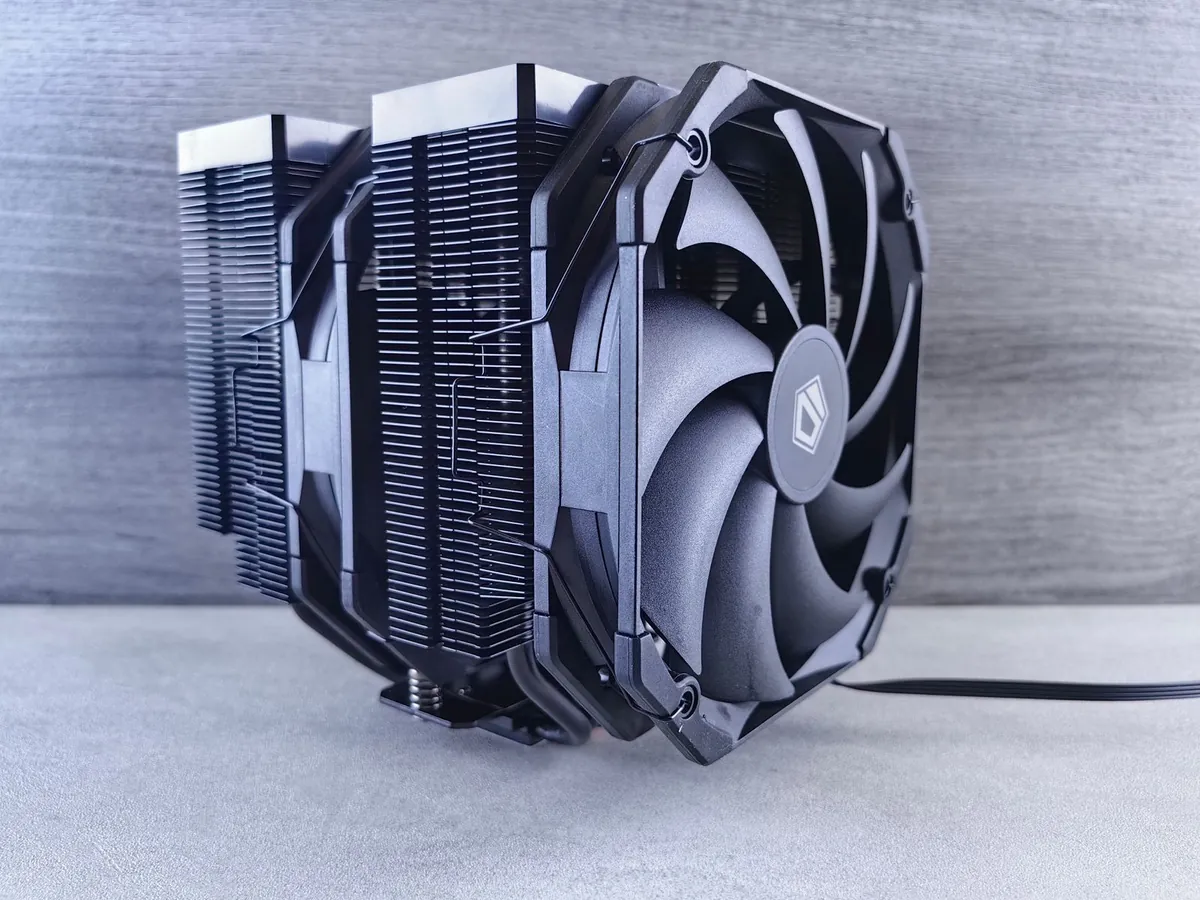
Dust in laptop vents is shockingly common. If your laptop is 2+ years old and you’ve never cleaned the vents, that alone can cause thermal throttling that looks like “slowness.” A can of compressed air ($5) blown into the exhaust vents (with the laptop OFF) often makes a 4-year-old laptop feel new again.
Method 12: Hardware upgrades (when software isn’t enough)
If you’ve done methods 1–11 and your laptop is still slow, you’re hitting hardware limits. The two upgrades that give the biggest real-world boost:
| Upgrade | Cost (India / Global) | Effect | Worth it? |
|---|---|---|---|
| HDD → SSD (SATA) | ₹3,000–6,000 / $40–80 | 5–10x faster boot, app load, file copy | Yes, always |
| HDD → NVMe SSD | ₹5,000–10,000 / $60–120 | 10–20x faster, if your laptop supports it | Yes, if slot exists |
| 4 GB → 8 GB RAM | ₹2,500–4,000 / $30–50 | Much better multitasking | Yes, if 4GB |
| 8 GB → 16 GB RAM | ₹4,000–7,000 / $50–90 | Helps Chrome, video editing, gaming | Only if hitting 7+GB usage |
SSD upgrade is the single best money-spent on any laptop more than 3 years old. A 2018 laptop with an SSD often outperforms a 2024 laptop with an HDD on everyday tasks.
Should I use a “PC cleaner” or “registry cleaner”?
No. Almost universally, no. CCleaner used to be okay; it’s now bundled with avoidance-worthy extras. Most “registry cleaners” are scams — Microsoft has stated repeatedly that registry cleaning provides no measurable performance improvement and risks system corruption.
The free tools Microsoft ships (Storage Sense, Defender, Task Manager startup control) handle everything a paid cleaner promises, without the bundled adware.
How do I know when to give up and replace the laptop?
Signs your laptop is past the point of optimization:
- Already has SSD, 8+ GB RAM, fresh Windows install, and still feels slow
- CPU is 7+ years old (Intel 7th gen or older, AMD pre-Ryzen)
- Battery is dead and replacement isn’t worth it
- Hinges, keyboard, screen all have issues — death by 1000 cuts
For light use (browsing, Office, YouTube), even a budget ₹35,000 / $400 laptop in 2026 will be faster than a high-end 2018 model. For heavier work, our Python tutorial notes the spec requirements for development laptops.
Frequently Asked Questions
Will reinstalling Windows make my laptop faster?
Yes, often dramatically. A fresh Windows install removes accumulated bloat, broken registry entries, and any malware. Settings → System → Recovery → “Reset this PC” → “Remove everything” gives you a clean install in about 30 minutes. Back up your files first.
How much RAM do I need for Windows 11 in 2026?
Minimum: 8 GB for basic use. Comfortable: 16 GB for multitasking, Chrome, light photo editing. Power user: 32 GB for video editing, virtual machines, heavy development. 4 GB is unusable on Windows 11 — even basic Office work feels sluggish.
Does antivirus slow down my laptop?
Third-party antivirus (Norton, McAfee, Avast) does cause measurable slowdown — 5–15% on most laptops, more on older ones. Windows Defender (built-in) has minimal impact and provides equivalent protection per AV-TEST 2026 ratings. Uninstall any third-party AV unless you need a specific feature it offers.
Why does my laptop slow down after a few hours of use?
Two common causes: (1) thermal throttling — CPU heats up and slows itself down to cool; check vents and fans. (2) memory leaks in long-running apps (Chrome especially). A simple restart fixes the second one; cleaning vents fixes the first.
Is it safe to disable startup programs?
Yes, safe. Disabling a startup app doesn’t uninstall it — it just stops it from launching at boot. You can re-enable any of them later in Task Manager → Startup apps. Avoid disabling antivirus, audio drivers, or anything from your laptop manufacturer (battery managers, etc.).
Final thoughts
Most “slow laptop” problems are fixable with 10 minutes of cleanup and zero rupees spent. Start with disabling startup apps, freeing disk space, and running Windows Update — that handles roughly 80% of cases.
If software cleanup doesn’t help, an SSD swap on any pre-2020 laptop is the single best ₹4,000 you’ll ever spend. Don’t fall for the “PC booster” YouTube ads — they’re at best useless and at worst malware in disguise.
If your slow laptop is making it hard to learn new software, our Python install guide and ChatGPT walkthrough are both light on resource use and run fine on modest hardware.
