Every Toronto client question about “what filesystem should I pick” gets the same flowchart from me. Here it is, written down, so you can decide before clicking Format.

Which filesystem should I pick?
| Filesystem | Max File Size | Best For | Compatibility |
|---|---|---|---|
| FAT32 | 4GB | Cameras, game consoles, old devices | Universal (everything reads it) |
| exFAT | Effectively unlimited | Cross-platform (Win + Mac) | Windows Vista+, macOS 10.6+, Linux, modern consoles |
| NTFS | 16 EB | Windows-only large drives | Windows (Mac reads only by default) |
| APFS | 8 EB | Mac-only SSDs and modern drives | macOS 10.13+ only |
| HFS+ | 8 EB | Older Mac drives | Mac, Windows (with drivers) |
| ext4 | 16 TB | Linux system drives | Linux native, Win/Mac with drivers |
How do I format a USB drive on Windows 11?
- Plug in the USB drive. Back up anything important first – formatting erases everything.
- Open File Explorer. Right-click the drive in This PC, Format.
- Pick filesystem from File system dropdown (NTFS, exFAT, FAT32).
- Allocation unit size: Default works fine for most use cases.
- Volume label: a name like “Family Photos” or “Backup.”
- Quick Format checkbox: on for new drives, off if the drive feels flaky (full format checks for bad sectors, takes longer).
- Click Start, OK. 30 seconds quick format, longer for full.
If the drive is over 32GB, Windows 11 will not offer FAT32 in the dialog. Workaround: use the diskpart command-line tool or a third-party tool like Rufus.

How do I format a drive on macOS Sequoia?
- Open Disk Utility (Spotlight, type “Disk Utility”).
- Select the drive in the left sidebar – pick the actual drive, not a partition under it.
- Click Erase at the top.
- Name the drive.
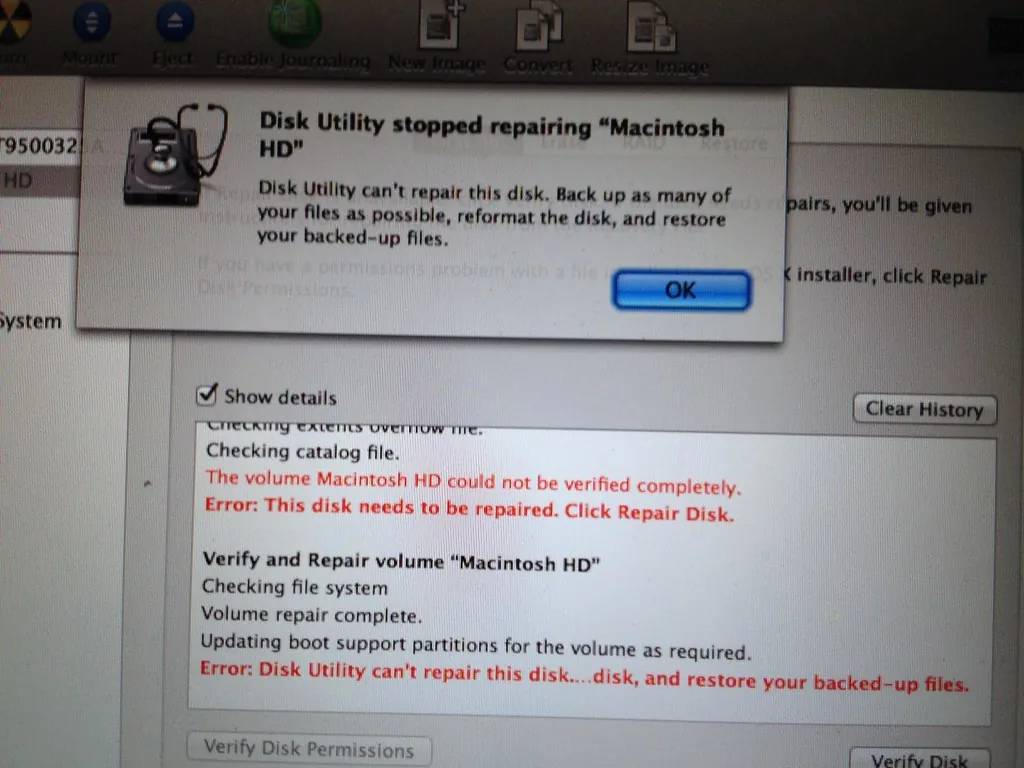
- Format: ExFAT for cross-platform, APFS for Mac-only modern, Mac OS Extended (Journaled) for older Macs.
- Scheme: GUID Partition Map for modern, Master Boot Record for compatibility with very old systems.
- Click Erase.
When should I use FAT32 in 2026?
Three cases:
- Cameras and dashcams (most only read FAT32)
- PlayStation 5 USB media (FAT32 or exFAT)
- BIOS-bootable USB on very old motherboards
FAT32 has the 4GB single file size cap – which kills modern video files. A single 1080p 1-hour MP4 video can hit 5-8GB.
Why exFAT is the 2026 default for shared drives
If you do not have a specific reason to pick another filesystem, exFAT is the right answer. Works on Windows, Mac, modern game consoles, and Linux. No 4GB limit. No special drivers needed.
I format every external drive I buy as exFAT unless it has a specific use case.
What about formatting for a bootable Windows USB?
Use Rufus or the Microsoft Media Creation Tool. They handle the format and bootloader setup. Manual formatting will not give you a bootable drive.
For installing Windows on a new build, see my custom PC build guide. For installing Linux, my Ubuntu beginner guide.
Should I do a quick format or full format?
Quick format wipes the file allocation table but leaves the actual data on disk (recoverable). Full format writes zeros to every sector – slow but verifies the drive’s health.
Quick: new drives, casual reformatting, your own drives.
Full: drives you suspect have bad sectors, used drives bought secondhand, drives you are about to dispose of (combined with secure erase).
How do I securely erase data before disposing of a drive?
Quick format leaves data recoverable. Use cipher /w:DriveLetter:\ on Windows to overwrite free space. Or use a tool like DBAN (USB-bootable disk wiper). For SSDs, use the manufacturer’s secure erase utility (Samsung Magician, Crucial Executive).
For file recovery from drives that should not be recoverable, see my file recovery roundup – it explains how recovery works (and where it does not).
What does the allocation unit size mean?
Cluster size. Smaller cluster = less wasted space on tiny files but slightly more overhead. Default (Windows picks automatically based on drive size) is fine 99% of the time. Only change if you have a specific reason.
For storing encrypted backups on USB drives, see my Windows 11 encryption guide. For broader backup strategy, my backup software roundup.
Frequently Asked Questions
Will formatting damage my USB drive?
Not really. SSDs and USB sticks have 10,000+ write cycles per cell. A few format operations are nothing.
Can I undo a format?
Sometimes – with recovery software immediately after, before writing new data. Quick format is more recoverable than full format. See my file recovery guide.
Why can I not see my USB on Windows?
Mounted with no drive letter (Disk Management, right-click partition, Change Drive Letter). Or formatted in an unsupported filesystem (ext4 – install Linux File Systems for Windows or use a Linux machine to read).
How big a USB drive should I buy in 2026?
128GB minimum at $15 USD. 256GB sweet spot at $25. 1TB USB sticks exist for $89-150 and are wild.
What is the fastest USB drive format?
USB 3.2 Gen 2 stick (10 Gbps), formatted exFAT, sequential read 500-1000 MB/s. Cheap USB 2.0 drives top out at 30 MB/s regardless of filesystem.
